If you’re trying to figure out how to curve text or wrap text around a circle in Canva, you’re in the right place. This is one of those design tricks that looks advanced but is actually very easy once you know where to click.
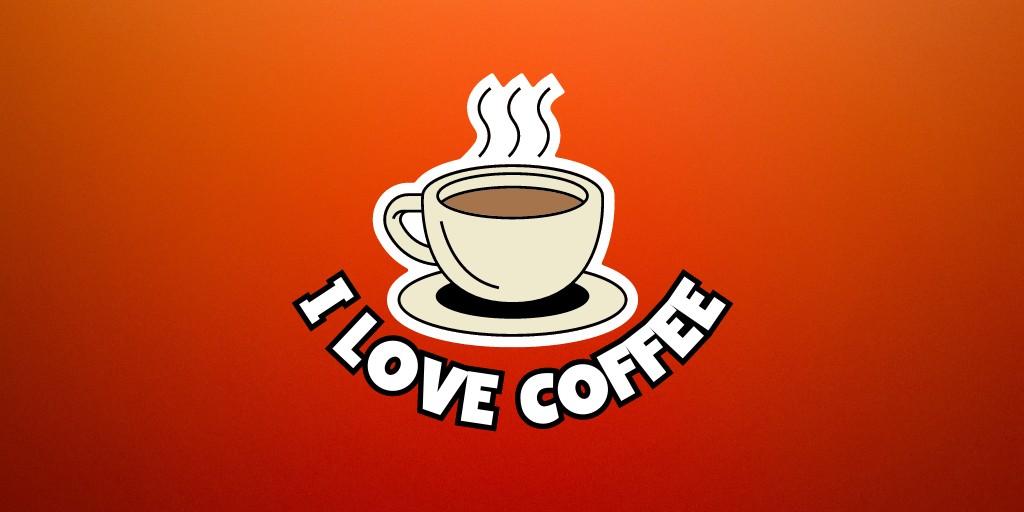
Curved text is commonly used for logos, badges, stickers, stamps, thumbnails, and social media graphics. The good news is you don’t need Photoshop or any complicated design software.
Canva already has everything you need built in.
In this guide, you’ll learn exactly how to curve text in Canva, how to wrap text into a full circle, and how to place text on both the top and bottom of a circle.
There’s also a video walkthrough included so you can follow along visually if you prefer.
Video Tutorial Walkthrough
If you want to see the exact process in real time, watch the video tutorial below. It shows every click and adjustment step by step, which can make things even easier to follow.
You can watch the video first or keep it open while following the written steps below.
Before you begin, make sure you have the following:
A Canva account (free or Pro both work)
Access to Canva on desktop or web (mobile has limited text controls)
A basic idea of what text you want to curve (brand name, slogan, phrase, etc.)
That’s it. No plugins, no extra tools, and no design experience required.
Step-by-Step: How to Curve Text in Canva
Step 1: Create a New Design in Canva
Open Canva and click the Create a design button at the top. You can choose any format you want, such as:
Custom size
Instagram post
Logo
YouTube thumbnail
Blank canvas
The size doesn’t matter for curving text, so pick whatever fits your project. Starting with a simple blank design or white background can help you focus on the text.
Step 2: Add Your Text
On the left-hand sidebar, click Text and add a text box. Type in the words you want to curve. This could be:
A brand name
A slogan
Something like “Coffee Lovers Club” or “Handmade with Love”
Make the text larger so you can clearly see the curve effect. You can also:
Change the font
Adjust the color
Make the text bold or spaced out
Do this now, because the curve effect will follow the styling you choose.
Step 3: Open the Text Effects Menu
Click once on the text box so it’s selected. Then look at the top toolbar and click Effects.
You’ll see several effects like Shadow, Lift, Neon, and Splice. Ignore those for now. Scroll down until you find a section called Shape.
By default, the shape is set to None.
Step 4: Apply the Curve Effect
Under the Shape section, click Curve.
As soon as you click it, your text will instantly bend into a curved shape. Canva automatically applies a slight curve so you can see the effect right away.
You’ll also see a Curve slider appear underneath the option.
Step 5: Adjust the Curve Slider
This slider is where the magic happens.
Drag the slider to the right to curve the text downward (like a smile)
Drag it to the left to curve the text upward (like a frown)
Keep dragging to increase the curve until the text forms a near-circle or full circle
With a bit of adjustment, you can create anything from a subtle arc to a complete circular shape.
This single slider is what allows you to wrap text around a circle in Canva .
How to Wrap Text Into a Full Circle
Curving text alone gives you an arc, but many designs need text all the way around a circle. This is common for logos, badges, and stamp-style graphics.
Here’s how to do it.
Step 6: Duplicate the Curved Text
Once you’re happy with your first curved text, duplicate the text box. You can do this by:
Pressing Ctrl + D (Windows) or Cmd + D (Mac)
Or right-clicking and choosing Duplicate
You now have two identical curved text boxes.
Step 7: Reverse the Curve for the Bottom Text
Click on the duplicated text box and go back to Effects → Shape → Curve.
This time, move the curve slider in the opposite direction. If the top text curves upward, the bottom text should curve downward.
Drag the second text box underneath the first one so it forms the bottom half of the circle.
Now you have text wrapped around both the top and bottom of a circle.
Step 8: Align and Rotate for a Clean Look
At this stage, the text may not line up perfectly. This is normal.
To fix it:
Slightly rotate each text box using the rotation handle
Adjust spacing and letter spacing if the text looks cramped
Resize the text if the circle feels too tight or too wide
Small adjustments make a big difference. Take a moment to fine-tune the alignment so the circle looks balanced and professional.
How to Add an Icon or Logo in the Center
Curved text looks even better when there’s something in the middle.
You can add:
A logo
An icon
A simple shape
A photo
To do this, drag your element into the center of the circular text. Resize it until it fits comfortably inside the text without touching the letters.
This is a popular layout for:
Brand logos
Stickers
T-shirt designs
Product labels
Adjusting Spacing for Better Results
If your curved text doesn’t look quite right, spacing is usually the issue.
Here are a few quick fixes:
Letter spacing: Increase it slightly to make curved text more readable
Font size: Reduce it if the text looks crowded
Font choice: Simple fonts often curve better than decorative ones
Don’t be afraid to test different fonts. Some fonts naturally look cleaner when curved.
Common Mistakes to Avoid
Even though curving text in Canva is easy, a few common mistakes can make the design look off.
Over-curving the text: Too much curve can distort letters
Using overly decorative fonts: They can become hard to read when curved
Forgetting alignment: Top and bottom text should feel evenly spaced
Ignoring rotation: Small rotations often fix uneven curves
If something looks wrong, zoom out and look at the design as a whole. Minor tweaks usually fix the issue.
FAQ: Curving Text Around a Circle in Canva
Can you curve text in Canva for free?
Yes. The curve text feature is available in the free version of Canva. You don’t need Canva Pro to use it.
Can I wrap text into a perfect circle?
You can get very close to a perfect circle by adjusting the curve slider and using two text boxes for top and bottom text. Canva doesn’t lock text to a path, but the result still looks clean and professional.
Does this work on mobile?
The curve text option is limited on mobile. For best results, use Canva on a desktop or laptop browser.
Can I curve text around shapes?
Canva doesn’t let you attach text directly to a shape path, but you can manually align curved text around circles or icons to achieve the same effect.
Why does my curved text look uneven?
This usually happens because of font choice, letter spacing, or rotation. Try adjusting spacing or rotating the text slightly to fix alignment issues.
Final Thoughts
Curving and wrapping text around a circle in Canva is one of the easiest ways to instantly upgrade your designs. Once you know where the Curve effect is, the entire process takes less than a minute.
You can use this technique for logos, stickers, thumbnails, badges, and social media graphics without any advanced design skills. If something doesn’t look right at first, small adjustments to spacing and rotation usually solve it.
If you want to see the exact steps in action, the video tutorial shows the full process from start to finish. Try it yourself in Canva and experiment with different fonts and layouts until you find a style you love.
Here Are Some of My Favorite Tools For Print-on-demand
As a graphic designer and POD seller, I’ve had the opportunity to discover different helpful products and tools that can be time-saving and make the process of creating your designs a bit smoother.
DESIGNS:Kittl (best for t-shirt designs), Vexels (for professional designs), Placeit (for unique product mockups)
Disclosure: Some of the links above may contain affiliate partnerships, meaning, at no additional cost to you, NechEmpire may earn a commission if you click through to make a purchase.
I'm Miroslav, a passionate graphic designer, Etsy seller and AI enthusiast. At NechEmpire, I'm here to share my knowledge and skills. I want to turn your design passion into a successful online business.