
Print Then Cut Sticker Sheet Planner: Max size and stickers per sheet
Pick your machine and paper size, enter your sticker size and spacing, and see the printable area, how many stickers fit on each sheet and how many sheets your batch needs.
Print Then Cut sticker sheet planner
Pick your machine and paper and enter your sticker size, and the sheet shows up here.
Design Nexus newsletter
Making sticker sheets?
Get sticker tips, printable templates and new calculators for crafters as soon as they are out.
How the sheet is worked out
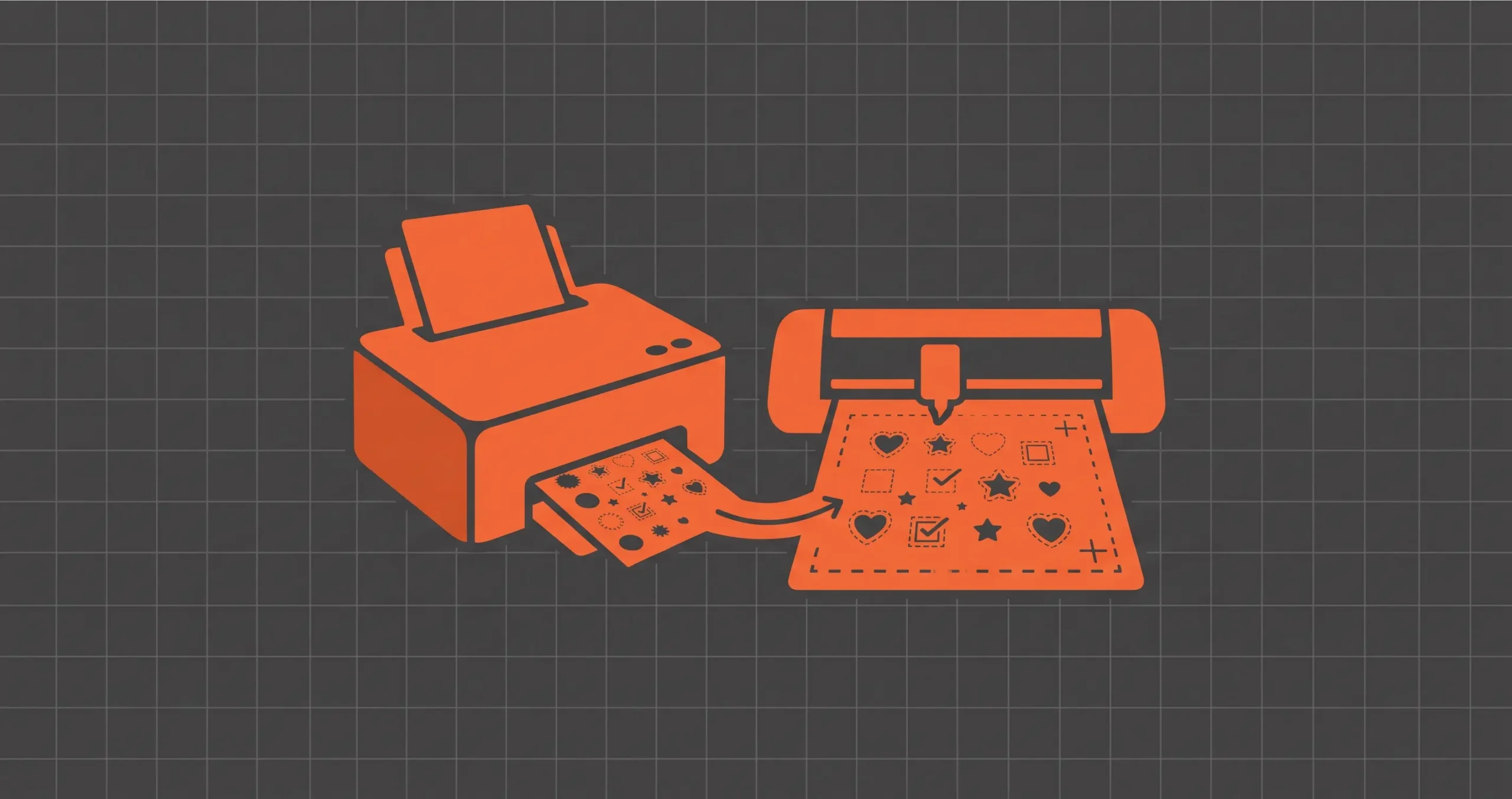
Print Then Cut prints sensor marks around your design, so the cutting machine can find the print. Those marks take room, which is why the cuttable area is smaller than the paper, and why its corners are notched.
The planner fills that area with rows of stickers, with the gap you set between them. Rows near the top and bottom are shorter because of the notches, and the stickers are turned when that fits more.
The maximum sizes come from Cricut's help page. The notches are measured from Cricut's drawing, so Design Space may fit a sticker more or less at the edges. For Silhouette, the area depends on the registration mark settings: type in the area Silhouette Studio shows inside the marks.
Print Then Cut maximum size by machine
| Machine | Paper | Maximum width | Maximum height |
|---|---|---|---|
| Cricut Explore series | Letter, 8.5 × 11 in | 7.44 in | 9.94 in |
| Cricut Explore series | A4, 21 × 29.7 cm | 7.2 in | 10.62 in |
| Cricut Explore series | Legal, 8.5 × 14 in | 7.44 in | 12.94 in |
| Cricut Explore series | Tabloid, 11 × 17 in | 9.94 in | 15.94 in |
| Cricut Explore series | A3, 29.7 × 42 cm | 10.64 in | 15.44 in |
| Cricut Maker series | Letter, 8.5 × 11 in | 7.44 in | 9.94 in |
| Cricut Maker series | A4, 21 × 29.7 cm | 7.2 in | 10.62 in |
| Cricut Maker series | Legal, 8.5 × 14 in | 7.44 in | 12.94 in |
| Cricut Maker series | Tabloid, 11 × 17 in | 9.94 in | 15.94 in |
| Cricut Maker series | A3, 29.7 × 42 cm | 10.64 in | 15.44 in |
| Cricut Joy Xtra | Letter, 8.5 × 11 in | 7.44 in | 9.94 in |
| Cricut Joy Xtra | A4, 21 × 29.7 cm | 7.2 in | 10.62 in |
| Cricut Joy 2 | Letter, 8.5 × 11 in | 3.19 in | 9.94 in |
| Cricut Joy 2 | A4, 21 × 29.7 cm | 3.07 in | 10.62 in |
| Cricut Venture | Letter, 8.5 × 11 in | 7.44 in | 9.94 in |
| Cricut Venture | A4, 21 × 29.7 cm | 7.2 in | 10.62 in |
| Cricut Venture | Legal, 8.5 × 14 in | 7.44 in | 12.94 in |
| Cricut Venture | 9 × 12 in | 7.94 in | 10.94 in |
| Cricut Venture | 11 × 11 in | 9.94 in | 9.94 in |
| Cricut Venture | Tabloid, 11 × 17 in | 9.94 in | 15.94 in |
| Cricut Venture | A3, 29.7 × 42 cm | 10.64 in | 15.44 in |
| Cricut Venture | 12 × 12 in | 10.94 in | 10.94 in |
| Cricut Venture | 12 × 18 in | 10.94 in | 16.94 in |
| Cricut Venture | 13 × 19 in | 11.94 in | 17.94 in |
| Cricut Venture | A2, 42 × 59.4 cm | 15.44 in | 22.34 in |
| Cricut Venture | 24 × 12 in | 22.94 in | 10.94 in |
| Cricut Venture | 24 × 28 in | 22.94 in | 26.94 in |
From Cricut's Print Then Cut size guide (edited August 19, 2026, checked October 2026). The maximum width and height can't both be used at once, because the corners are notched. Cricut, Explore, Maker, Joy and Venture are Cricut's trademarks; we're not affiliated.
Print Then Cut max size
A cutting machine can’t cut the whole printed page. It has to find the registration marks the printer puts around your design first, and those marks plus the margin around them take up space. So the area you can actually design on is noticeably smaller than the sheet.
For Cricut machines that support Print Then Cut (Joy Xtra, the Explore series, the Maker series and Venture), the maximum image size on standard home printer paper is:
| Paper | Max width | Max height |
|---|---|---|
| Letter (8.5 × 11 in) | 7.44 in | 9.94 in |
| A4 (8.3 × 11.7 in) | 7.2 in | 10.62 in |
Source: Cricut Help: How large can I Print Then Cut?
Cricut adds a note to these numbers: you can’t always use the full width and the full height at the same time. A single design that runs right to both limits may get rejected. A sheet of separate stickers inside the limits normally fits, but if Design Space complains, shave a row or column and try again.
Silhouette machines work differently. The usable area depends on your registration mark settings in Silhouette Studio, and you can make it bigger by moving the marks closer to the paper edge.
The planner uses Studio’s default settings for Silhouette, so treat its numbers as the safe starting point. If you’ve changed your marks, check the printable area in Studio and enter it as a custom size.
How many stickers per sheet on a Cricut
The planner divides the printable area by the sticker size plus spacing, rounds down, and multiplies across by down. With an eighth of an inch between stickers, which leaves enough room for the cut line and a little white around each sticker, you get:
| Sticker size | Letter | A4 |
|---|---|---|
| 1 in | 48 | 54 |
| 1.5 in | 24 | 24 |
| 2 in | 12 | 15 |
| 3 in | 6 | 6 |
Two things stand out.
A4 beats Letter for 1 inch and 2 inch stickers. The A4 printable area is a little narrower but almost three quarters of an inch taller, and that’s enough for an extra row. If you sell 2 inch stickers and live somewhere A4 is standard, you get 15 per sheet against 12 for a Letter seller.
Small size changes jump the count. On Letter, 2 inch stickers give you 12 per sheet. Make them 1.875 inches and five rows fit, so you get 15. That’s a quarter more stickers per sheet from a sixteenth of an inch less on each side. Before you finalise a sticker size, run a few sizes just under it through the planner.
Picking the spacing
An eighth of an inch is a sensible default for kiss-cut sticker sheets. Go below that and the cuts for neighbouring stickers get close enough to tear the paper between them.
If you add a white offset border around each sticker in your design software, enter the sticker size with that border included. The planner needs the size of the outermost cut line. The design inside it doesn’t matter.
Cricut also prints a small bleed around each image so the colour runs past the cut line. Spacing keeps those bleeds from running into each other. If you see colour from one sticker printed on the next one’s border, increase the spacing a little.
Sheets needed for a batch
Enter the number of stickers you want and the planner divides by the stickers per sheet and rounds up.
A batch of 100 two-inch stickers needs 9 Letter sheets (108 sticker spots) or 7 A4 sheets (105 spots). Add a sheet for test prints. The first sheet after changing paper or printer settings often comes out with the cut slightly off, and that sheet becomes your test.
For mixed batches, run each sticker size through the planner separately, then add up the sheets. Mixing sizes on one sheet can fit more in total, but working out a mixed layout by hand takes longer than it saves for most small batches.
Keep your layout in Design Space
Cricut Design Space rearranges images on the mat when it sends them to print. Lay out 15 separate stickers and it may spread them across two sheets.
To stop that, put your stickers into one image before you send them. In Design Space, select them all and click Flatten, so the software treats the whole sheet as one printable piece. Then the layout the planner gave you is the layout that prints.
Silhouette Studio keeps your layout as you placed it, as long as everything sits inside the registration mark border.
A worked example
You sell 2 inch round stickers in packs of 10 and have an order for 20 packs, 200 stickers in total. You print on Letter with a Cricut Explore.
Choose the Explore, Letter, a 2 inch sticker and an eighth of an inch spacing. The planner shows a printable area of 7.44 by 9.94 inches, 12 stickers per sheet in a grid of three across and four down, and 17 sheets for 200 stickers.
Change the sticker size to 1.875 inches. The count goes to 15 per sheet, five rows of three, and the batch drops to 14 sheets. That’s three fewer sheets of sticker paper and three fewer print and cut cycles, from a size difference most buyers won’t notice.
Then add one sheet for a test print.
Frequently asked questions
What is the Print Then Cut max size on Letter paper?
For Cricut’s Print Then Cut machines, 7.44 inches wide by 9.94 inches tall, according to Cricut’s help centre. On A4 it’s 7.2 by 10.62 inches.
How many stickers per sheet can a Cricut cut?
It depends on the sticker size and spacing. With an eighth of an inch between stickers on Letter paper, you get 48 one-inch stickers, 24 at 1.5 inches, 12 at 2 inches or 6 at 3 inches.
Why does Cricut put my stickers on more than one sheet?
Design Space arranges separate images on its own. Flatten your stickers into one image before sending them to print, and they’ll stay on one sheet.
Can I Print Then Cut with a Cricut Joy?
The original Cricut Joy doesn’t support Print Then Cut. The Joy Xtra does, with the same Letter and A4 limits as the Explore and Maker machines.
Does Silhouette have a bigger print and cut area than Cricut?
It can, because Silhouette Studio lets you move the registration marks closer to the page edge. The exact area depends on your settings, so check it in Studio and enter it in the planner as a custom size.